What is Zonal OCR? Definition, Examples, and How It Works


Zonal OCR is a form of optical character recognition that reads text from specific regions of a document instead of scanning the entire page. You define the zones you care about, and the system ignores everything else. If you've ever deposited a check through your phone or snapped a photo of a W-2 in TurboTax, you've already used it.
- Zonal OCR targets specific regions of a document rather than reading the full page, which improves both speed and accuracy.
- Zones can be drawn manually by a user, hardcoded by software for known templates, or detected automatically by machine learning models.
- You already use zonal OCR daily through mobile check deposits, tax filing apps, and phone camera features like Live Text and Google Lens.
Key Takeaways
What is Zonal OCR?
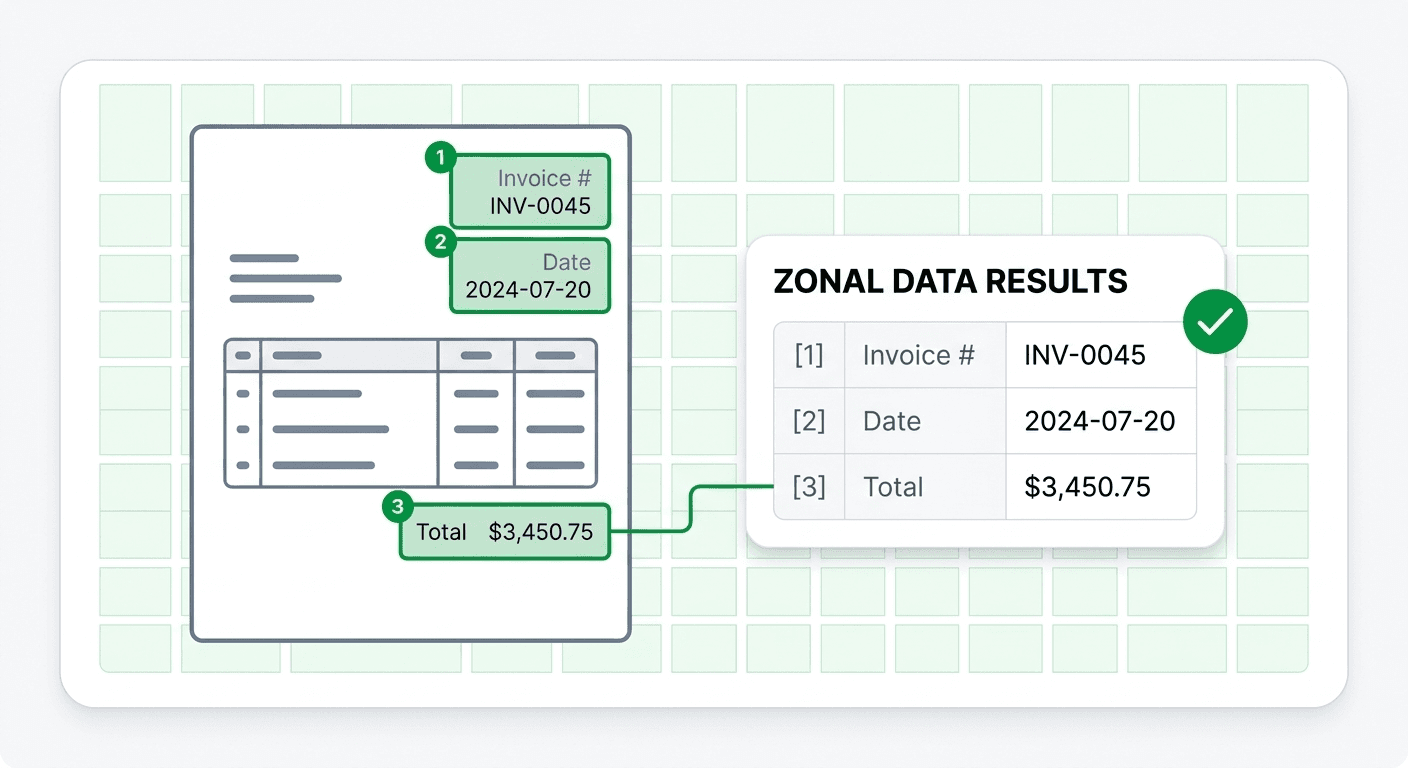
Standard OCR reads every character on a page. That works fine when you need the full text of a document, but most of the time you don't. You need the invoice total, not the footer. You need the patient name, not the entire form. Zonal OCR solves this by letting you point the OCR engine at specific areas and extract only what matters.
Think of it as cropping a photo before printing it. Instead of processing an entire document image, the system focuses on predefined rectangles (zones) where the relevant data lives. Each zone gets its own OCR pass, and the result is clean, structured output tied to specific fields.
This approach is sometimes called OCR zoning, and it sits at the core of how most document automation tools actually work. Whether you're reading invoices, processing tax forms, or extracting table data from PDFs, some form of zonal OCR is almost always involved.
How Zonal OCR Works: The Three Types of Zone Definition
Not all zonal OCR works the same way. The key difference is how zones get defined in the first place. There are three main approaches, and most modern tools use a combination of them.
1. User-Defined Zones
This is the original version of zonal OCR. A user opens a document template and manually draws rectangles around the areas they want to extract. The system remembers those positions and applies them to every new document that follows the same layout.
Enterprise document capture tools like Kofax and ABBYY FineReader have offered this for years. It works well when you're processing large batches of identical forms. The limitation is obvious: if the layout changes, the zones break.
2. Software-Defined Zones
Here, the developer or the software itself decides where data lives. A W-2 form always has the employer EIN in the same spot. A standard check always has the routing number in the bottom-left corner. So the software hardcodes those zones and reads them automatically.
This is arguably the most common form of zonal OCR today. Every time an app "knows" where to look on a document, it's using software-defined zones. No user interaction is needed because the template is already mapped out.
3. Learned Zones (Adaptive OCR Zoning)
This is the modern evolution. Machine learning models analyze a document and dynamically identify regions of interest: a table, a signature block, a logo, a header row. They don't rely on fixed coordinates. Instead, they learn what different zones look like and detect them even on documents they haven't seen before.
Sometimes called intelligent or adaptive zonal OCR, this approach is what powers tools that can handle varied and unpredictable layouts. It combines the precision of zonal extraction with the flexibility of AI-powered OCR.
Which Approach Should You Use?
If you're processing a single document type with a fixed layout, software-defined zones are the simplest and most reliable option. For custom forms where the user knows what they need, user-defined zones work great. And if your documents vary in structure or you're building a product that needs to handle anything, learned zones with ML are the way to go.
Real-World Examples of Zonal OCR
Zonal OCR isn't a niche technology locked inside enterprise software. You interact with it regularly, often without realizing it.
Mobile Check Deposits
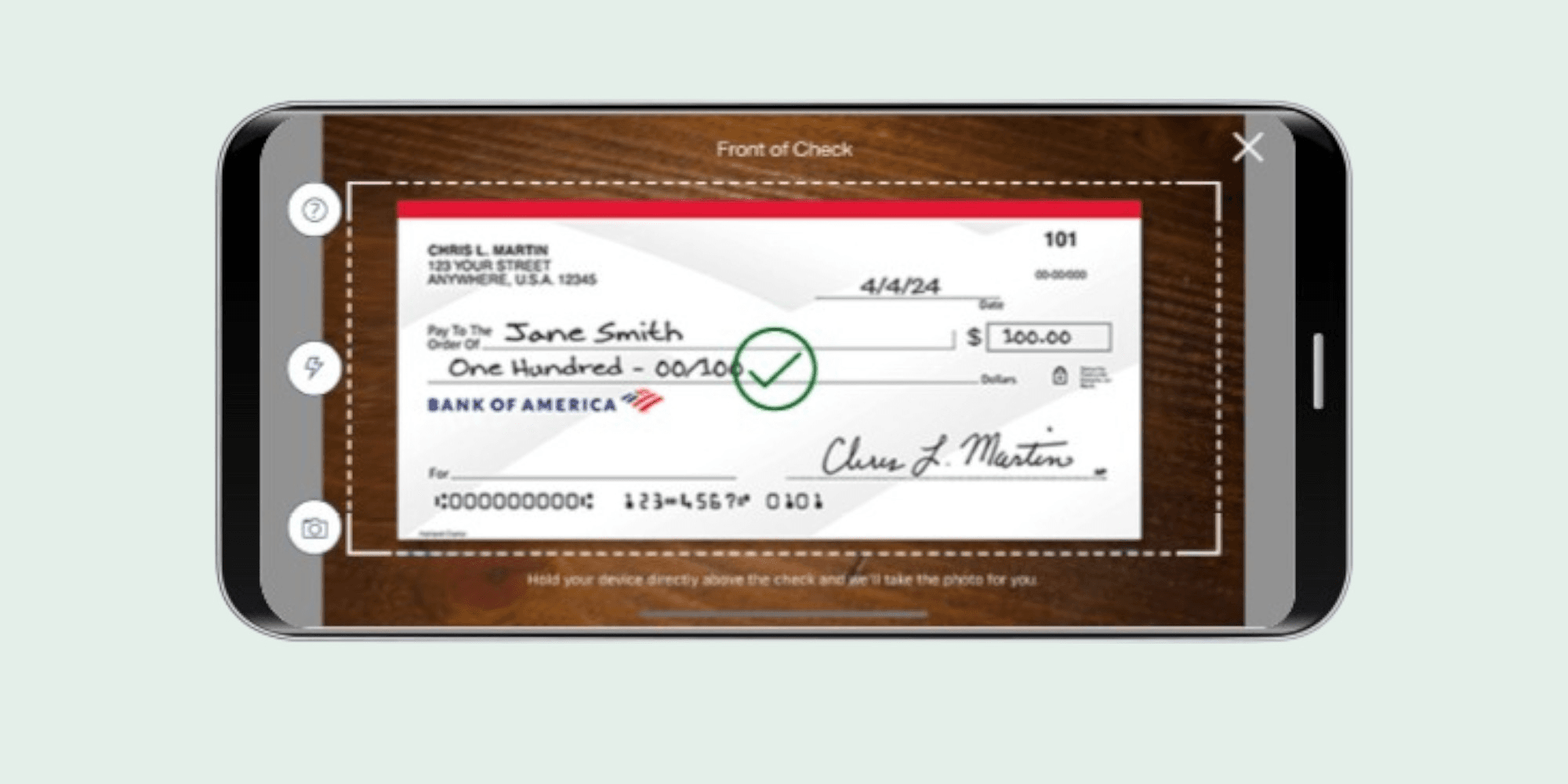
When you deposit a check through Chase, Bank of America, or any banking app, the camera doesn't just read the entire check as a blob of text. It targets specific zones: the routing number in the bottom-left, the account number in the bottom-center, and the handwritten or printed amount in the upper and lower zones. Each region gets extracted independently and mapped to the correct field. That's a precise OCR zoning task running on your phone.
Document Processing with Parsea
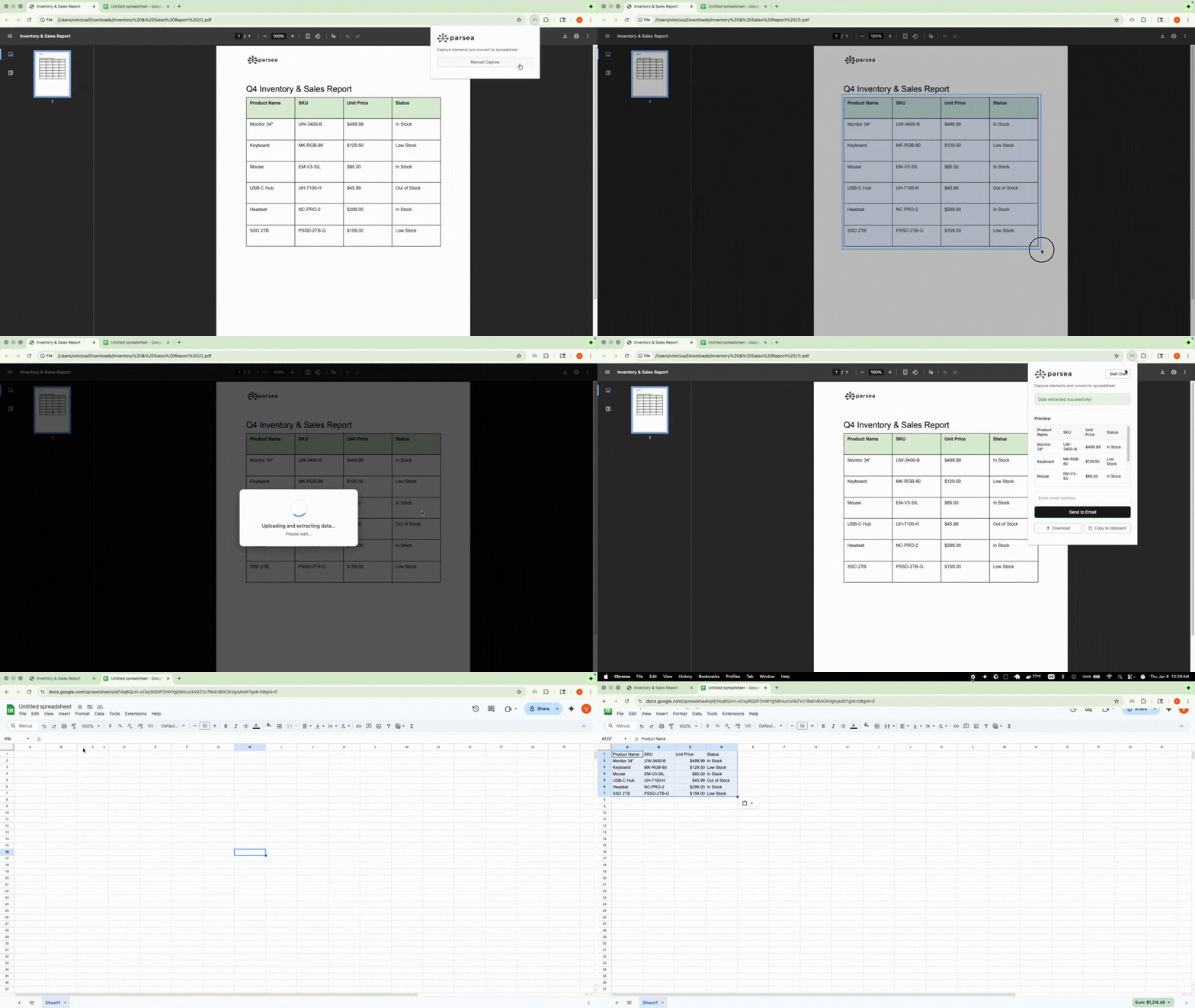
Parsea uses advanced zonal OCR to detect and extract tables, forms, and document boundaries automatically. The web tool identifies these regions on its own, which means you don't need to manually define zones for every new document type.
For cases where you need to extract a specific table, the Parsea Browser extension includes a manual capture feature. You select a table area on any webpage or document, and the extension extracts just that region. It's a practical example of user-defined zonal OCR that you can use directly in your browser.
Live Text and Google Lens
Point your iPhone camera at a receipt and it pulls out just the total. Scan a business card and it auto-fills the name, phone number, and email into separate contact fields. These aren't full-page OCR reads. Your phone is identifying zones on the fly and processing each one independently. Apple's Live Text and Google Lens both rely on this kind of learned zone detection to deliver structured results from unstructured images.
TurboTax and H&R Block
The "snap a photo of your W-2" feature is a textbook zonal OCR use case. The software knows exactly where Box 1 (wages), Box 2 (federal tax withheld), and the employer EIN live on a W-2 form. It reads only those regions and maps each value to the right field in your tax return. Millions of people use this every year, and most of them have no idea that zonal OCR is doing the heavy lifting.
Why Zonal OCR Matters for Document Processing
Full-page OCR is useful, but it creates noise. When you read an entire document, you get every header, footer, watermark, and piece of boilerplate along with the data you actually need. Someone still has to sort through that output to find the relevant fields. Zonal OCR skips that step entirely.
By focusing only on specific regions, zonal OCR delivers three key advantages:
- Speed. Processing a few small zones is significantly faster than reading an entire page, especially at scale.
- Accuracy. Smaller, targeted regions reduce the chance of misreads. When the OCR engine only needs to handle a clean, well-defined area, OCR accuracy improves substantially.
- Structure. Because each zone maps to a specific field, the output is already organized. No post-processing needed to figure out which text belongs where.
For teams building document processing pipelines, zonal OCR is often the first technique to implement. It turns raw scans into structured data without the complexity of a full AI extraction system, and it works reliably on any document with a consistent layout.
Zonal OCR Open Source Tools
If you're a developer looking to implement zonal OCR yourself, there are solid open source options available.
Tesseract OCR is the most widely used open source OCR engine. It doesn't have built-in zone management, but you can crop specific regions from an image using a library like OpenCV or Pillow and then pass each cropped area to Tesseract individually. This is effectively zonal OCR with a manual pipeline.
OpenCV handles the image processing side: detecting document edges, identifying table lines, and isolating regions of interest. Combined with Tesseract, it gives you a flexible zonal OCR setup without any licensing costs.
The tradeoff is clear. Open source tools give you full control but require significant development effort to handle edge cases, varied layouts, and production-grade accuracy. Managed solutions like Parsea handle that complexity for you and work out of the box.
FAQ
What is the difference between zonal OCR and full-page OCR?
Full-page OCR reads every character on a document. Zonal OCR reads only the specific regions you define. The result is faster processing, higher accuracy on targeted fields, and structured output that maps directly to your data model.
What is OCR zoning?
OCR zoning is the process of defining specific areas on a document where the OCR engine should focus. These zones can be set manually by a user, hardcoded by software for known document types, or detected automatically by machine learning models.
Can zonal OCR handle handwritten text?
It depends on the OCR engine behind it. Traditional zonal OCR with basic recognition struggles with handwriting. Modern tools that combine zonal extraction with AI-powered recognition can handle handwritten text much more reliably. Mobile check deposit is a good example: the handwritten amount on a check is a zone that gets processed using advanced recognition models.
Final Thoughts
Zonal OCR is one of those technologies that quietly runs behind the scenes in tools you already use every day. From depositing a check on your phone to filing taxes with a photo, it's the reason these features feel effortless. The core idea is simple: don't read the whole page when you only need a few fields.
Whether you're building your own extraction pipeline or looking for a ready-made solution, understanding how OCR zoning works gives you a clearer picture of what's possible. If you want to try zonal OCR on your own documents without writing code, Parsea's free document parser can detect and extract tables, forms, and structured data automatically.