OCR Accuracy: A Real-World Test Across Three Tools

We tested three OCR tools on three types of documents: a clean digital paystub, a phone photo of a Bill of Lading, and a handwritten food inventory. On clean documents, every tool scored 100%. On the handwritten document, the results ranged from 24.3% to 100%. OCR accuracy isn't one number. It depends on your documents, your content type, and the tool you choose. Here's the full breakdown.
| Document | Tesseract | Google Vision | Parsea |
|---|---|---|---|
| Easy: Paystub | 100% | 100% | 100% |
| Medium: Bill of Lading | 99.2% | 100% | 100% |
| Challenging: Handwritten | 24.3% | 100% | 100% |
Defining OCR Accuracy
OCR accuracy measures how correctly a tool converts document images into usable text. There are two ways to measure it.
Character accuracy counts how many individual characters the tool recognized correctly across the entire document. Field accuracy measures whether specific data fields, like a date, a name, or a total amount, were extracted correctly as complete values.
Both matter. A tool can score 99% character accuracy and still return a useless invoice number if it scrambles one digit. For real workflows, field accuracy is often the more important measure.
We used a Point-Based Data Extraction method for this test. We identified key fields on each document, manually recorded their ground truth values, and scored each tool's output from 0 to 1 per field. We also tracked full character accuracy across each document.
How We Tested: Methodology
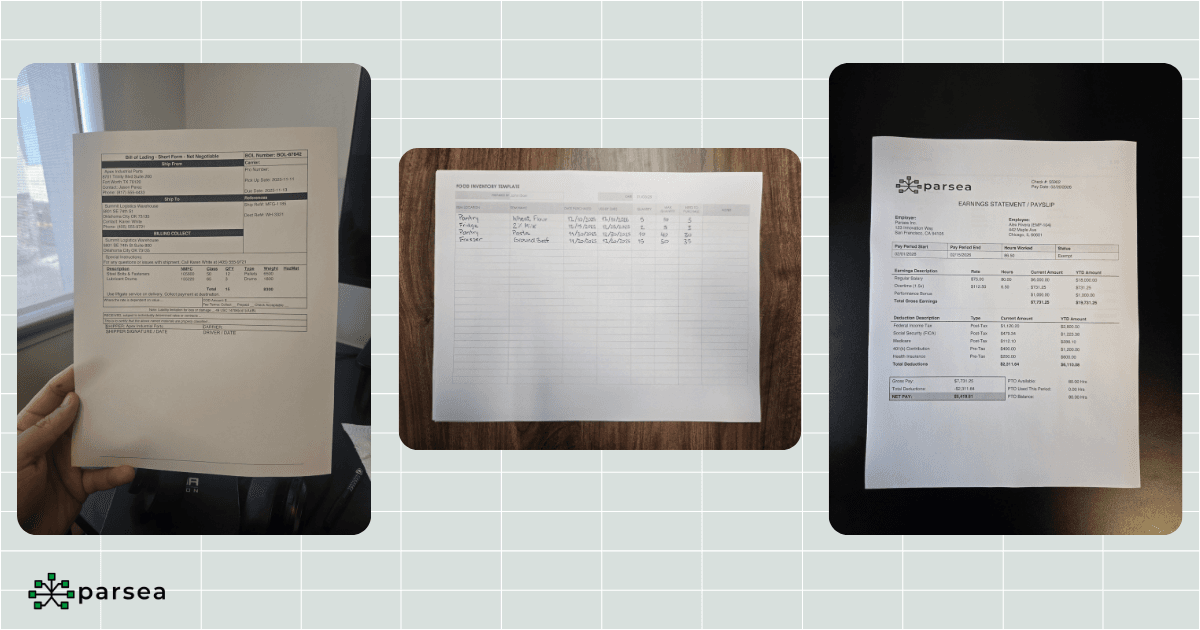
Tools Tested
- Tesseract via scribeocr.com — the most widely used open-source OCR engine.
- Google Cloud Vision via the Google Cloud drag-and-drop demo.
- Parsea via parsea.io.
Documents
- Easy: A digital paystub. Clear image, high definition, good lighting.
- Medium: A Bill of Lading captured as a photo. Some shadows, not properly cropped, uneven surface.
- Challenging: A handwritten food inventory sheet.
Scoring
We identified several key fields per document (dates, names, addresses, amounts, line items) and compared each tool's extracted value to the manually verified ground truth. Each field scored 0 to 1. We also calculated overall character accuracy by counting every character across the document and the errors made by each tool.
Here are the full results across all three documents:
View Full Results Table
| Document | Field | Tesseract (Score) | Google Vision (Score) | Parsea (Score) |
|---|---|---|---|---|
| Easy: Paystub | Total Pay | 1 | 1 | 1 |
| Easy: Paystub | Pay Date | 1 | 1 | 1 |
| Easy: Paystub | Employee Id | 1 | 1 | 1 |
| Easy: Paystub | Employee Name | 1 | 1 | 1 |
| Easy: Paystub | Employer Name | 1 | 1 | 1 |
| Easy: Paystub | Federal Tax | 1 | 1 | 1 |
| Easy: Paystub | Social Security | 1 | 1 | 1 |
| Easy: Paystub | Medicare | 1 | 1 | 1 |
| Easy: Paystub | Character Accuracy | 100% | 100% | 100% |
| Medium: BoL | BOL Number | 1 | 1 | 1 |
| Medium: BoL | Shipper Name | 1 | 1 | 1 |
| Medium: BoL | Shipper Address | 1 | 1 | 1 |
| Medium: BoL | Shipper City, State, ZIP | 1 | 1 | 1 |
| Medium: BoL | Consignee Name | 1 | 1 | 1 |
| Medium: BoL | Consignee Address | 1 | 1 | 1 |
| Medium: BoL | Consignee City, State, ZIP | 1 | 1 | 1 |
| Medium: BoL | Line Items | 1 | 1 | 1 |
| Medium: BoL | Character Accuracy | 99.2% | 100% | 100% |
| Challenging: Food Inventory | Item Location | 0 | 1 | 1 |
| Challenging: Food Inventory | Item Name | 0.3 | 1 | 1 |
| Challenging: Food Inventory | Quantity | 0.3 | 1 | 1 |
| Challenging: Food Inventory | Date Purchased | 0.2 | 1 | 1 |
| Challenging: Food Inventory | Use By | 0.5 | 1 | 1 |
| Challenging: Food Inventory | Max Quantity | 0.5 | 1 | 1 |
| Challenging: Food Inventory | Need to Purchase | 0 | 1 | 1 |
| Challenging: Food Inventory | Overall Accuracy | 24.3% | 100% | 100% |
Test 1: Easy Document — Paystub
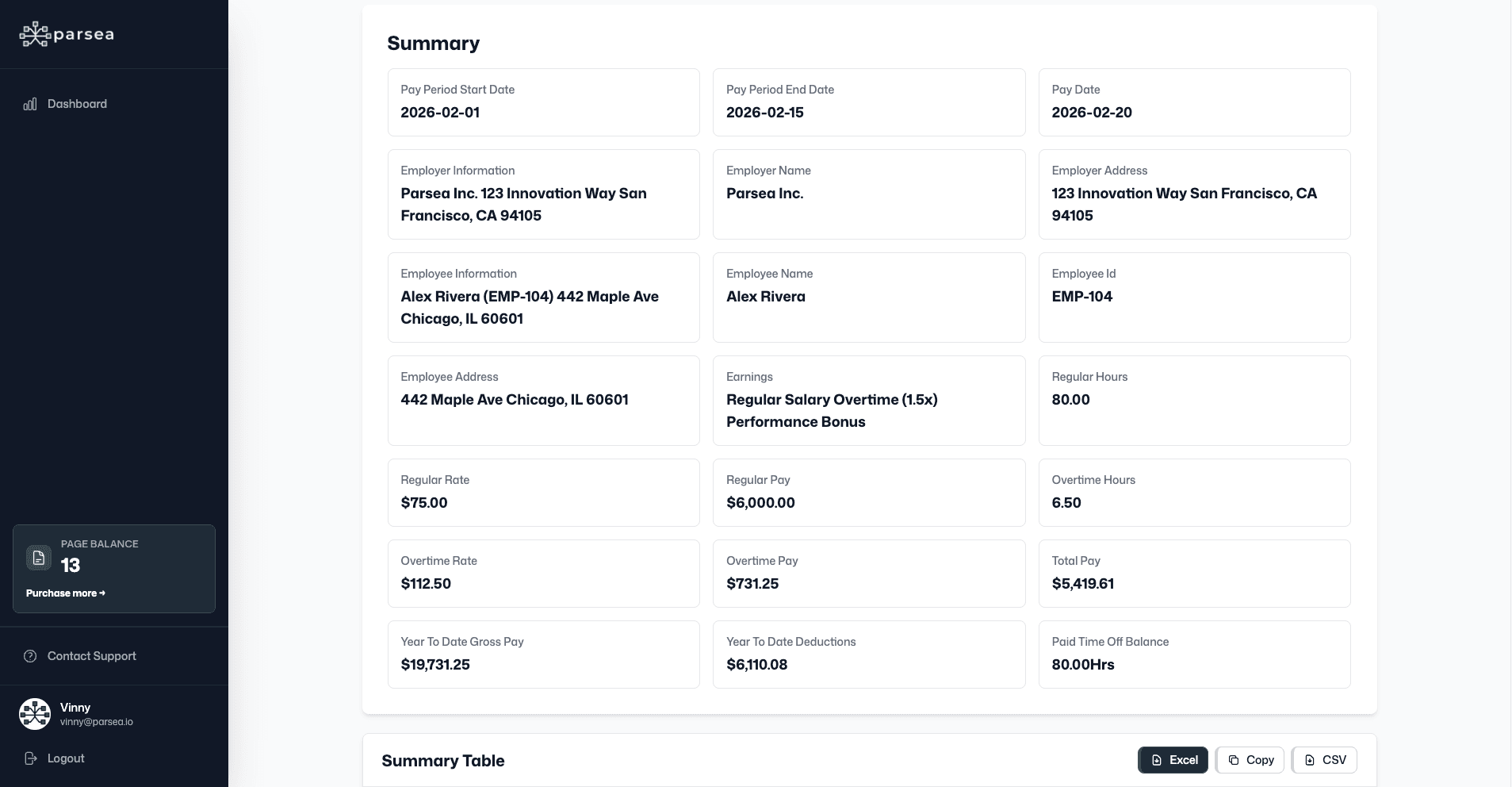
All three tools scored 100% across every field. Total pay, pay date, employee ID, employer name, tax withholdings — everything extracted correctly. No surprises here.
Clean, high-resolution documents with standard printed fonts are where every modern OCR engine performs at its best. If your documents consistently look like this, tool selection matters much less than you might think.
What this tells us
Most real-world documents don't look like this. The paystub is the ceiling. It shows what's possible when conditions are ideal — and it sets the baseline for measuring how much conditions matter.
Test 2: Medium Document — Bill of Lading
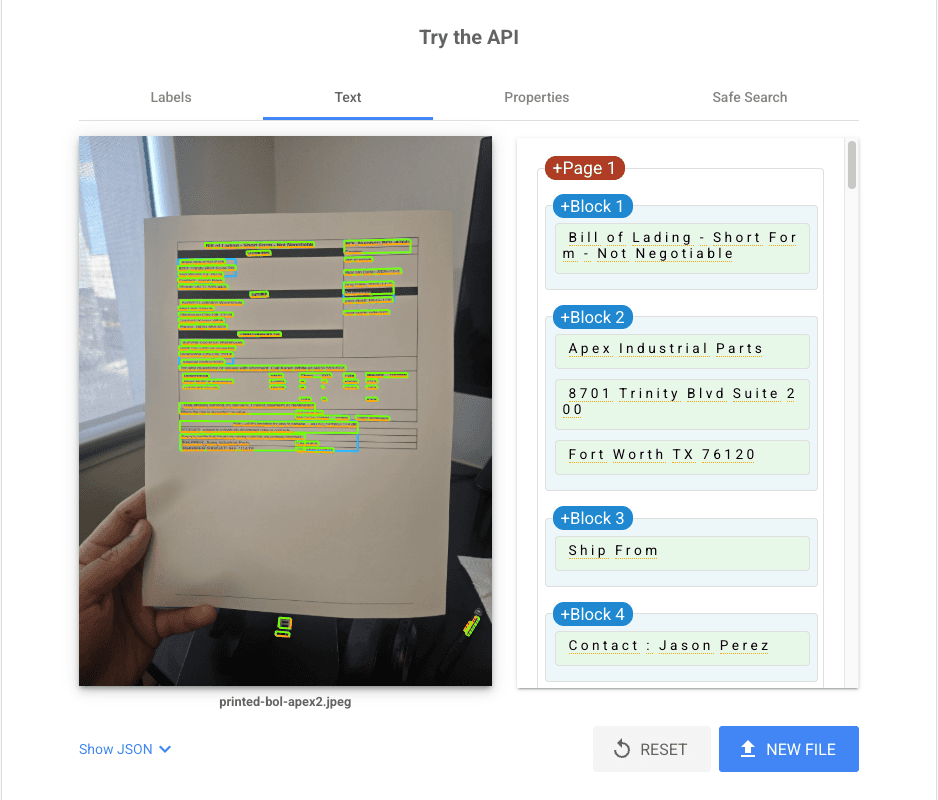
Google Cloud Vision and Parsea both hit 100% character accuracy. Tesseract finished at 99.2%, missing one character on the shipper label. Every named field scored 1.0 across all three tools.
This document had shadows, an uneven surface, and poor cropping — the kind of image you'd get from a warehouse worker snapping a photo on a phone. Google Vision was notably impressive here, correctly reading text visible in the document's background.
A 0.8% gap might look small. But in a document processing workflow handling thousands of records, that gap compounds. One misread character in a shipment number is a manual correction. At scale, it's a process failure.
Test 3: Challenging Document — Handwritten Food Inventory
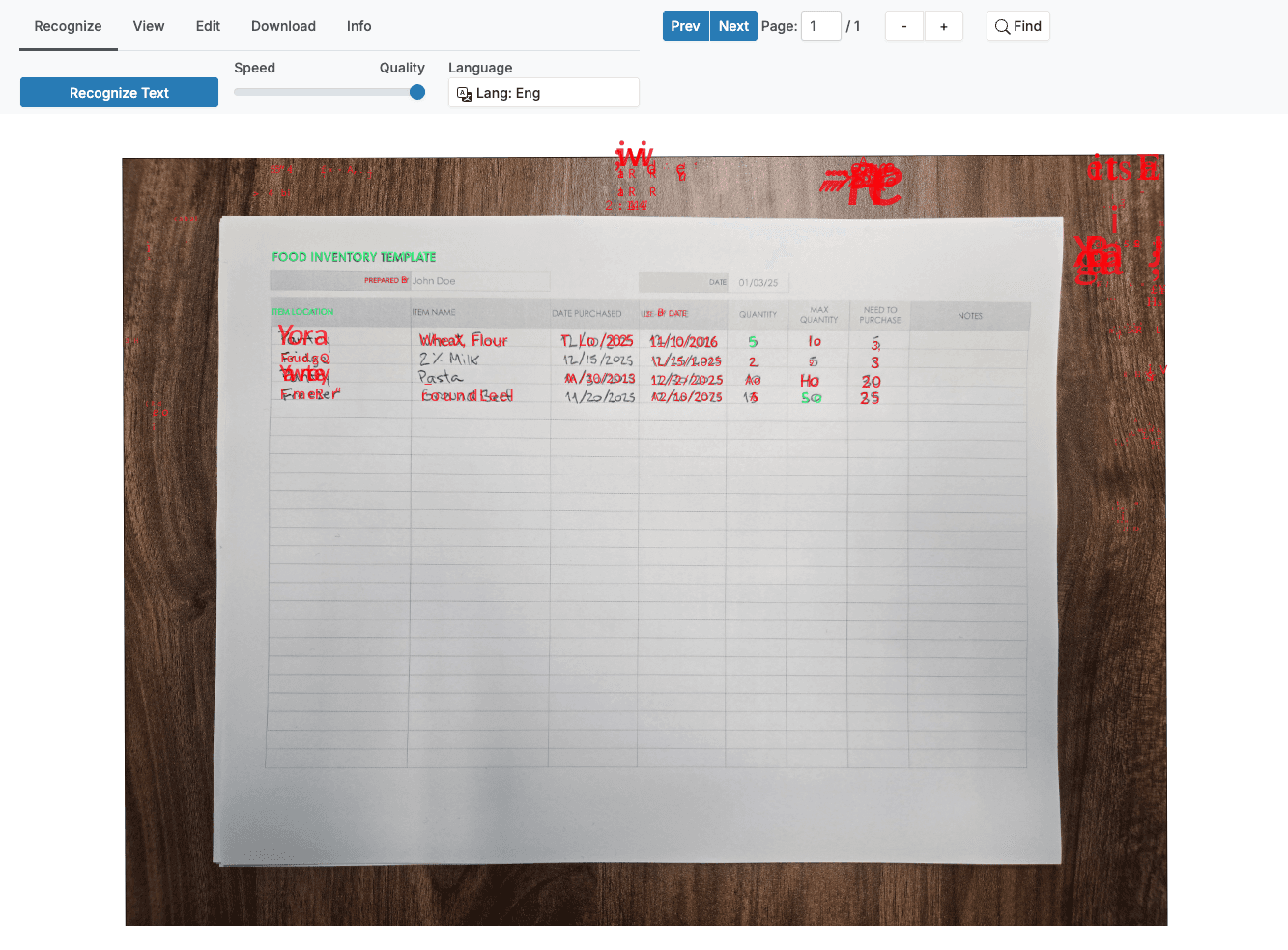
This is where everything diverged. Google Cloud Vision and Parsea both scored 100% on every field. Tesseract reached 24.3% overall character accuracy and failed to produce a single complete, correctly extracted field.
Tesseract could identify isolated characters. It could not connect them into readable words or meaningful field values. Location, item name, quantities, dates — all scored at or near zero.
This result makes sense once you understand the underlying technology. Tesseract is built for printed text. Handwriting recognition requires Intelligent Character Recognition (ICR), which uses machine learning to adapt to different writing styles. AI OCR tools like Google Vision and Parsea include this capability. Traditional engines don't.
The practical implication
If any documents in your workflow include handwriting — field notes, signed forms, inventory sheets, delivery confirmations — you need a tool built for it. A 75-percentage-point accuracy gap is not recoverable with post-processing.
What Affects OCR Accuracy?
Our experiment surfaced three factors that matter most:
- Document quality. The paystub showed that clean documents produce perfect results from every tool. The Bill of Lading showed that real-world image quality creates gaps. Resolution, lighting, and alignment all push accuracy up or down.
- Text type: printed vs. handwritten. Printed text is essentially a solved problem for good tools. Handwriting is not. The 75-point gap on the food inventory demonstrates how dramatically content type changes the picture.
- The OCR engine itself. All tools performed equally on easy documents. By the time we reached the challenging document, the differences were massive. Tool selection matters most when your documents are imperfect — which is most of the time.
How to Improve OCR Accuracy
Start with the source document. Better input means better output, regardless of which tool you use:
- Scan at 300 DPI or higher. Low resolution is the most common cause of avoidable errors.
- Use consistent lighting and avoid shadows, especially when photographing documents in the field.
- Keep documents flat and properly aligned before capturing. Skewed text challenges every engine.
- Save files as PNG or TIFF instead of heavily compressed JPEGs, which introduce artifacts around characters.
Then choose the right tool for your document type. For clean printed documents, most modern tools perform well. For field-captured photos or documents with shadows, prioritize AI-powered tools. For handwriting, you need a tool with ICR capability — traditional OCR engines simply aren't built for it.
Finally, use preprocessing when your tool supports it. Deskewing, contrast enhancement, and noise removal all improve recognition before the engine even starts reading. Many document processing pipelines include these steps automatically.
Final Thoughts
OCR accuracy isn't a single benchmark. It's a function of your documents, your content type, and the tool you choose. Our test showed that the right tool scores 100% even on handwritten documents — while the wrong tool scores 24.3% on the same file.
If you're processing documents at scale, that gap determines whether automation works or creates more manual work. Want to see how Parsea handles your documents? Try it free and test it against your own files — the same way we did here.