How to Import Data into Google Sheets: A Practical Guide

To import data into Google Sheets, start with File → Import for CSV, TSV, and TXT files, or upload Excel files in Google Drive and open them with Sheets. For live website data, use IMPORTHTML or IMPORTXML. For JSON, use formulas for simple objects, Apps Script for complex data, or a connector tool for recurring API imports. For PDFs and images, use a converter or a browser tool that extracts tables directly.
Copy and Paste
Copy and paste is the fastest option for small datasets. It works best when your source is already tabular, like a report table in a web app or a spreadsheet exported to your clipboard.
- Copy the table rows and columns.
- In Google Sheets, click the target cell (usually A1).
- Paste. Sheets typically keeps rows and columns intact.
If the paste lands in one column, try pasting into a blank sheet and use Split text to columns from the Data menu. This method might allow you to maintain the formulas and formatting of the original data. However, it might not be the best option if you need to import a large dataset or if the data is not tabular.
Import a File (CSV, TSV, TXT)
For most people, this is the best way to import data into Google Sheets because you get control over where the data goes and how it is parsed. CSV files are the most common format you will encounter, but TSV and TXT work the same way.
- Open a spreadsheet in Google Sheets.
- Go to File → Import.
- Upload the file and choose where to place it (new spreadsheet, new sheet, replace).
- Set the separator (comma for CSV is common, but not guaranteed).
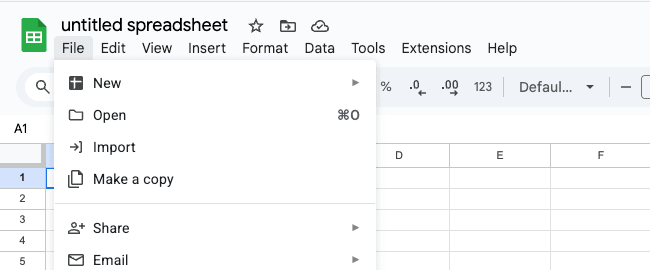
For official guidance on imports, Google's help article is a solid reference: Import data into Google Sheets.
Upload Excel or ODS via Google Drive
If your source is Excel (XLSX, XLS) or OpenDocument (ODS), uploading to Drive and opening with Sheets is often the smoothest path.
- Upload the file to Google Drive.
- Right-click the file and choose Open with → Google Sheets.
- Review formatting, formulas, and date columns for any conversion quirks.
If you do this frequently, consider enabling Drive’s automatic conversion setting so uploads open as Google editor files. You can find it in Drive settings. (This is helpful, but not required.)
Import Data from a Website
Pulling data from websites into Google Sheets is possible using built-in functions. This is ideal when you want the sheet to refresh automatically with the website.
Use IMPORTHTML for tables
=IMPORTHTML("https://example.com", "table", 1)Use IMPORTXML for targeted extraction
=IMPORTXML("https://example.com", "//h2")These formulas work well on static pages. Dynamic sites that load content with JavaScript require different approaches like browser extensions or scraping tools.
Google's function docs are useful when troubleshooting syntax and limits: Google Sheets function list and documentation.
Import JSON Data
JSON is common for APIs and modern apps, but it is not a spreadsheet format. Your job is usually to turn JSON objects into rows and columns.
- Simple JSON: formulas can work when the structure is consistent.
- Complex JSON: Apps Script is more reliable for nested objects and arrays.
- Recurring API imports: use a connector tool that handles auth, pagination, and refresh schedules.
Need a deeper guide?
Read our complete JSON to Google Sheets tutorial for step-by-step instructions and advanced examples.
Import Data from PDF
PDFs are tricky because they are visual representations of tables, not real table data. The best approach depends on whether your PDF is text-based or scanned.
- Text-based PDFs: converters can often extract tables cleanly because the text is selectable.
- Scanned PDFs: you need OCR (optical character recognition) to read the text, and you should expect some cleanup afterward.
Most PDF to Excel tools work best with documents that have clear table structures. Multi-page PDFs with complex layouts (merged cells, nested tables, or mixed content) often require manual adjustments after extraction.
Import Data from Images
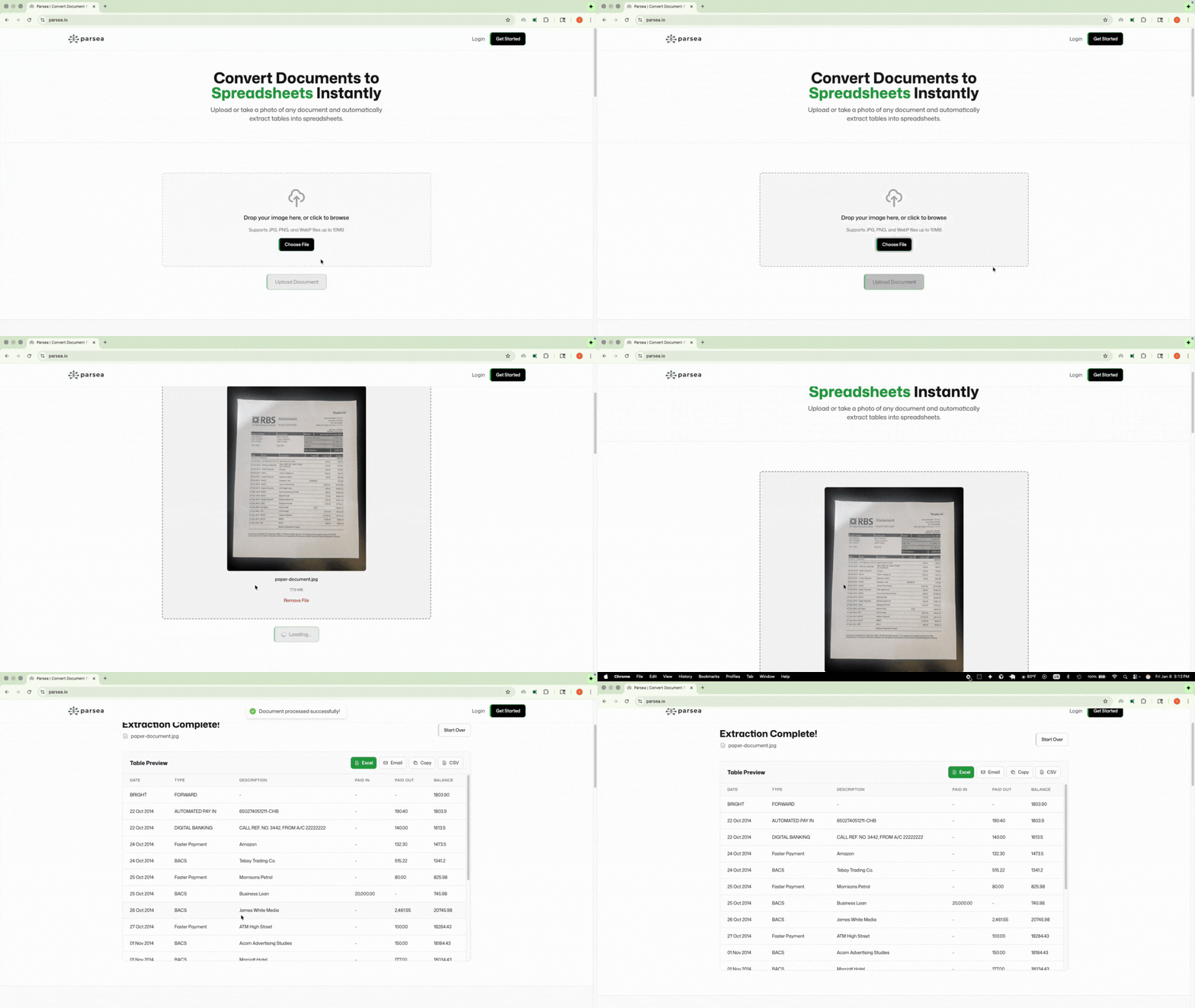
If you have a screenshot or photo of a table, you can use an OCR tool to extract the data. Most image to spreadsheet converters work the same way: upload an image, let the tool detect rows and columns, then export the result.
We built Parsea for exactly this use case. You upload a PNG, JPG, or similar image, and it pulls out the table data so you can export it to Excel or Google Sheets. Worth a try if you find yourself retyping data from images often.
Use the Google Sheets API
If you are a developer importing data programmatically, the Google Sheets API is the cleanest route. It lets you create spreadsheets, write values, update ranges, and manage permissions, all from your own code.
Common use cases
- Syncing data from a database or CRM into a shared spreadsheet
- Generating reports on a schedule and pushing them to Google Sheets
- Building internal tools where non-technical users can view live data
- Reading form responses or user submissions for processing
Getting started
To use the API, you will need to create a project in the Google Cloud Console, enable the Sheets API, and set up authentication. Google supports OAuth 2.0 for user-facing apps and service accounts for server-to-server workflows. Once authenticated, you can use client libraries for Python, Node.js, Java, Go, and other languages to interact with spreadsheets.
Start with Google's official docs: Google Sheets API documentation. If you are already in Google Workspace and want something simpler, Apps Script is another option for lightweight automation. It runs directly in Google's environment without needing to set up your own server: Apps Script for Google Sheets.
Bonus: Use a Chrome Extension
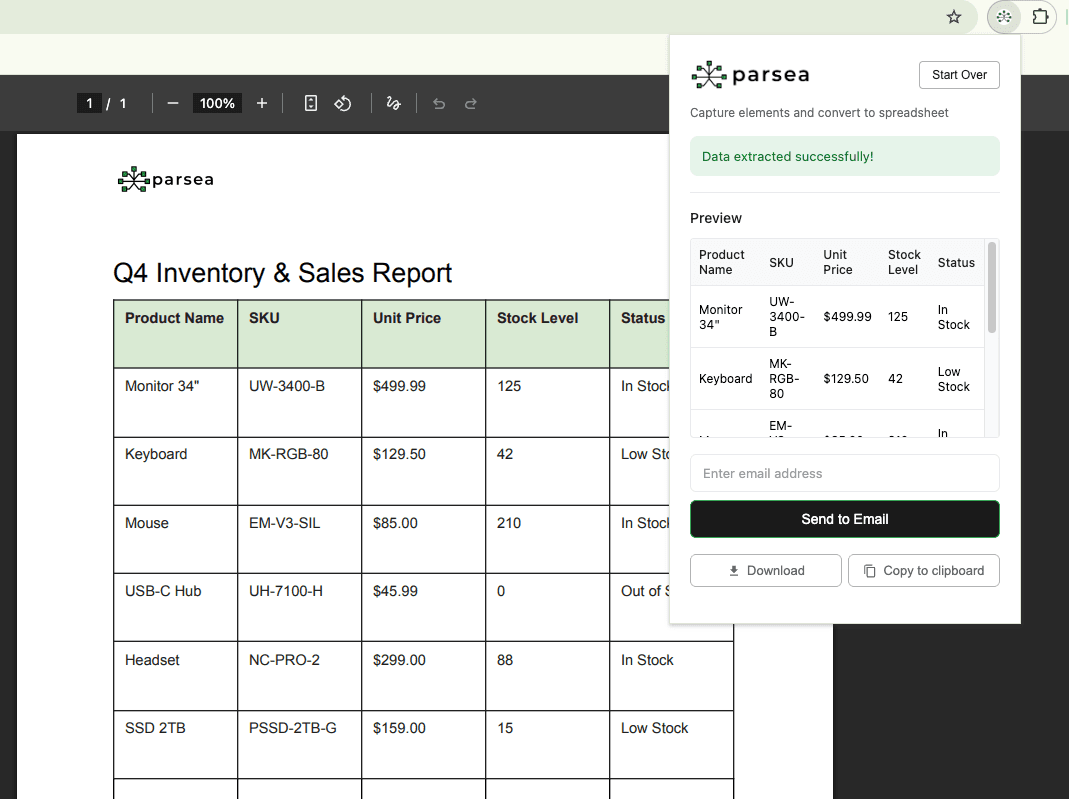
When the data is on your screen but hard to extract (PDF tables, web app grids, images), a browser tool can be faster than exporting files. The Parsea Chrome extension lets you capture a table area and copy the extracted data into Google Sheets.
Next Steps
Pick the method that matches your source and how often you need updates. For one-time imports, file import and copy-paste are fastest. For recurring imports, use website functions, a connector, or the Sheets API.
Once your data is in Google Sheets, consider automating your workflows with macros, Apps Script, or third-party tools like Zapier and n8n.