How to Import CSV to Google Sheets

CSV files are the universal format for spreadsheet data. Whether you exported data from a database, downloaded a report, or received a file from a colleague, getting it into Google Sheets is straightforward. You can import CSV files directly through the Sheets interface, upload via Google Drive, or use browser tools for quick conversions. Here are three methods ranked by speed and flexibility.
Method 1: Import via Google Sheets Interface
The most direct way to import a CSV file is through Google Sheets' built-in import feature. This method gives you full control over how your data appears in the spreadsheet.
How to Import
- Open Google Sheets in your browser
- Go to File → Import
- Click the Upload tab and drag your CSV file (or click "Select a file from your device")
- Choose your import location: create a new spreadsheet, insert new sheets, or replace data in the current sheet
- Select the separator type (comma is default for CSV)
- Click Import data
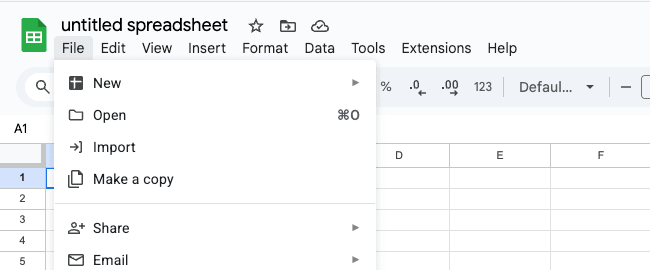
According to Google's official documentation, you can import files up to 10 million cells. For larger datasets, consider splitting your CSV into smaller files.
Pro Tip
If your CSV uses semicolons, tabs, or custom delimiters instead of commas, select "Custom" in the separator dropdown and specify your delimiter character.
Method 2: Upload via Google Drive
If you manage files through Google Drive, you can upload CSV files and convert them to Google Sheets format directly. This method is faster when you're already working in Drive.
How to Upload and Convert
- Open Google Drive
- Drag and drop your CSV file into Drive (or click New → File upload)
- Right-click the uploaded CSV file
- Select Open with → Google Sheets
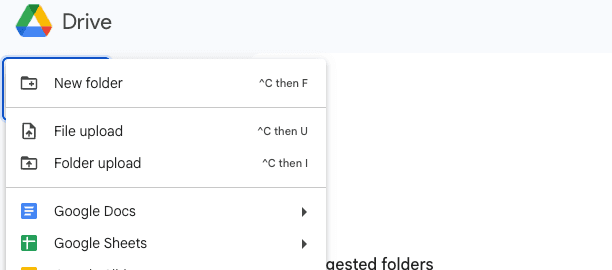
Drive automatically detects the file format and opens it in Sheets. The original CSV remains in your Drive while a new Google Sheets file is created.
Auto-Convert Setting
Enable automatic conversion in Drive settings: click the gear icon, go to Settings, and check "Convert uploads to Google Docs editor format." Now all uploaded CSVs become Sheets automatically.
Bonus: Use a Chrome Extension
For quick conversions without leaving your browser, the Parsea Chrome extension offers a fast alternative. It's especially useful when you're viewing CSV data in your browser and need to extract it instantly.
How to Use It
- Install the Parsea extension from Chrome Web Store
- Open a CSV file in your browser (or any webpage with tabular data)
- Click the extension icon and select the data area
- Copy the extracted data and paste into Google Sheets
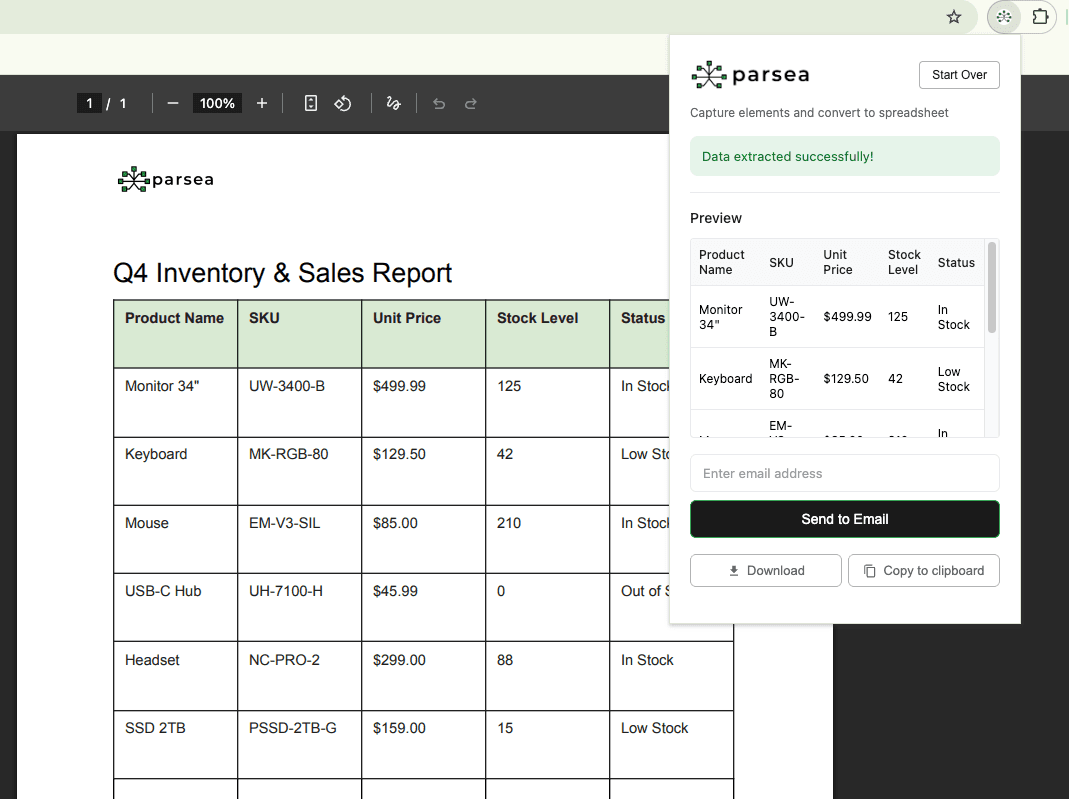
This method shines when dealing with CSV files displayed on web pages or when you need to quickly grab tabular data without downloading files first.
Which Method Should You Use?
Here's a quick comparison to help you decide:
| Method | Best For | Speed |
|---|---|---|
| Sheets Import | Custom delimiters, precise placement | Moderate |
| Google Drive | Quick conversions, file management | Fast |
| Chrome Extension | Browser-based data, no downloads | Fastest |
For most users, the Google Sheets import method offers the best balance of control and simplicity. If you frequently work with CSV files in Drive, enable auto-conversion to save time. And when you spot CSV data online, the browser extension gets it into Sheets in seconds.
Next Steps
CSV is just one of many formats you can bring into Google Sheets. For a complete overview of import options, check out our guide on how to import data into Google Sheets.