6 Google Apps Script Examples to Automate Your Workflow

Google Apps Script lets you automate tasks across Gmail, Sheets, Docs, Drive, and Calendar using JavaScript. You can send emails automatically, create documents from templates, build approval workflows, and connect to external APIs. This guide covers 8 practical scripts you can copy and use today, from beginner-friendly examples to advanced workflows.
Requirements and Pre-requisites
Before you start writing scripts, you need a Google account and access to Google Sheets. All examples in this guide assume you're working within a Google Sheet where the script will run.
Creating a New Apps Script Project
Each Google Sheet can have its own Apps Script project connected to it. Here's how to create one:
- On the Google Sheet, go to Extensions → Apps Script
- Delete the default function called
myFunctionand paste the code from any of the examples from this guide - Click Save (or press Ctrl+S / Cmd+S) and give your project a name
The script project is now connected to your sheet. Any code you write can access the sheet's data using SpreadsheetApp methods.
Enabling Required Services
Some examples require specific Google services to be enabled. When you first run a script that uses Gmail, Calendar, or Drive, Google will prompt you to authorize access. Click Review Permissions and then Allow to grant the necessary permissions.
For complete documentation on all available services, check the official Google Apps Script documentation.
Level: Beginner1. Send an Email with GmailApp
What It Does
GmailApp lets you send emails directly from your script. You can automate email notifications from Google Sheets, send personalized messages to a list of contacts, or trigger alerts when certain conditions are met.
Apps Script Code
function sendEmailFromActiveCell() {
  // 1. Get the value from the cell currently selected by the user
  const recipient = SpreadsheetApp.getActiveRange().getValue();

  const subject = 'Weekly Report Ready';
  const body = 'Hi,

The weekly report is now available.

Best regards';

  // 2. Check if the cell actually contains an email address before sending
  if (recipient && recipient.toString().includes('@')) {
    GmailApp.sendEmail(recipient, subject, body);
    SpreadsheetApp.getUi().alert('Email sent successfully to: ' + recipient);
  } else {
    // 3. Show an error message if the selection is invalid
    SpreadsheetApp.getUi().alert('Error: Please select a cell that contains a valid email address.');
  }

  // Optional: Send HTML email with formatting
  // GmailApp.sendEmail(recipient, subject, body, {
  //  htmlBody: '<h2>Weekly Report Ready</h2><p>The report is now available.</p>',
  //  name: 'Automated Reports'
  //});
}
To run this function, you need to create a send button on the Google Sheet. Click on the Insert → Drawing menu item, select a rounded rectangle and draw the shape and add text: "Send Email". Save and close the drawing.
Then, click on the button and select Assign script. Enter sendEmailFromActiveCell and click OK. The first time you click the button, Google will ask for permission to send emails on your behalf. Review the permissions and click Allow.
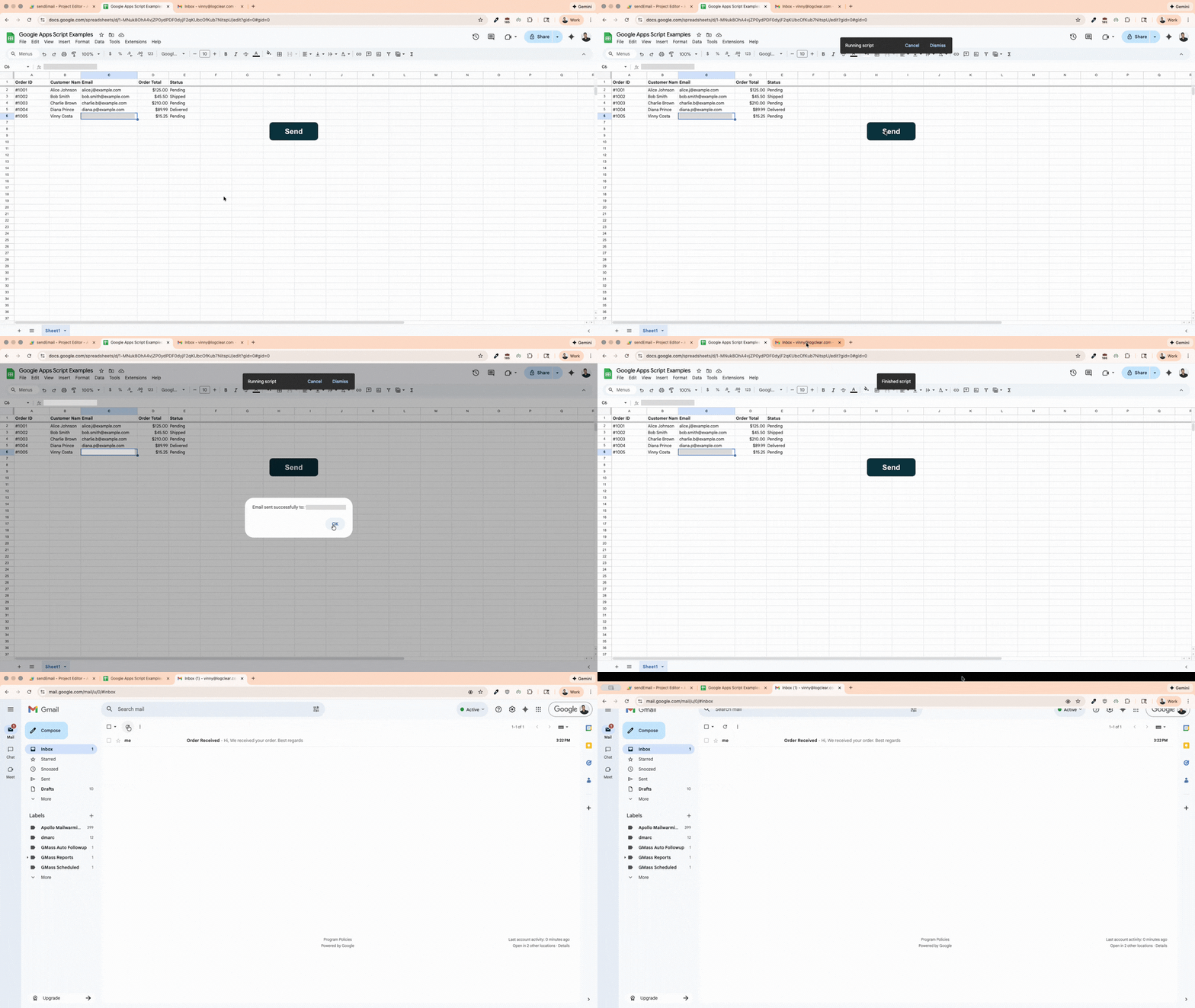
Now, when you select a cell that contains an email address and click the button, the email will be sent to the address in the cell.
Level: Beginner2. Create a Calendar Task with CalendarApp
What It Does
CalendarApp lets you create tasks and reminders in Google Calendar. You can create tasks from spreadsheet data, create recurring tasks, or set up reminders based on deadlines in your sheets.
Apps Script Code
function createTask() {
  const calendar = CalendarApp.getDefaultCalendar();

  // Create an all-day task/reminder
  const taskDate = new Date('2026-01-30');
  calendar.createAllDayEvent('Submit Q1 Report', taskDate);
}
You can also read events from a spreadsheet and create them in bulk. Loop through rows containing dates, titles, and attendees to schedule multiple meetings at once.
Learn how to make this dynamic by pulling values from cells.
Level: Beginner3. Create a Folder and Document with DriveApp
What It Does
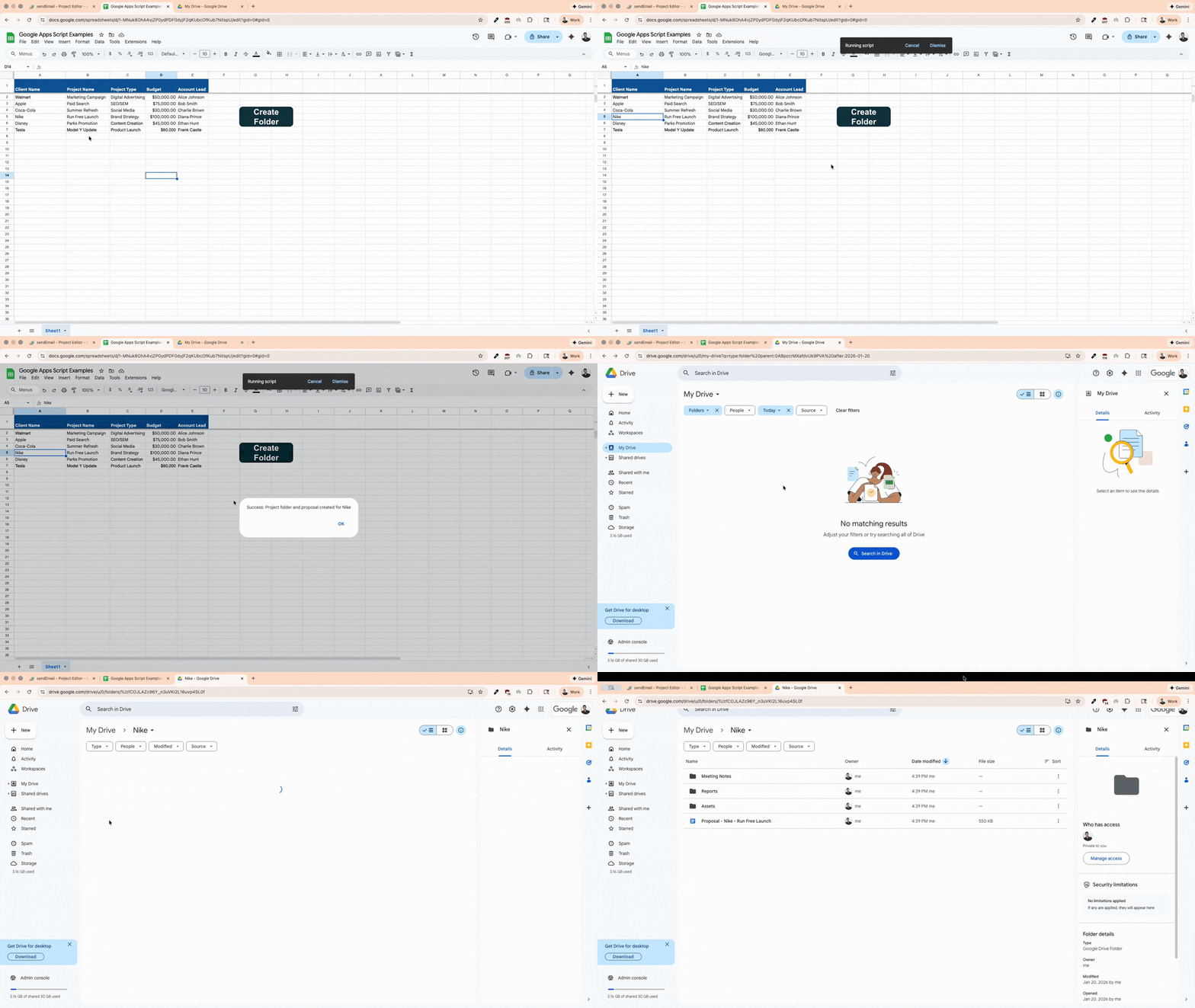
DriveApp manages files and folders in Google Drive. In this example, we will create a project folder and a proposal document for a client. The script reads the client name and project name from the active row in the spreadsheet and creates a project folder and a proposal document.
Apps Script Code
function createProjectFolder() {
  const sheet = SpreadsheetApp.getActiveSpreadsheet().getActiveSheet();
  const activeRow = sheet.getActiveRange().getRow();

  // Read data from the active/selected row
  const clientName = sheet.getRange(activeRow, 1).getValue();  // Column A
  const projectName = sheet.getRange(activeRow, 2).getValue();      // Column B


  // Create a new folder in Drive
  const mainFolder = DriveApp.createFolder(clientName);

  // Create subfolders for organization
  const subfolders = ['Assets', 'Reports', 'Meeting Notes'];
  subfolders.forEach(name => {
    mainFolder.createFolder(name);
  });

  // 1. Get the template file using its ID
  const templateId = 'TEMPLATE_FILE_ID';
  // Note: Replace 'TEMPLATE_FILE_ID' with the actual ID of your proposal template
  const templateFile = DriveApp.getFileById(templateId);

  // 2. Duplicate the template and rename it with the client name
  const newProposalName = 'Proposal - ' + clientName + ' - ' + projectName;
  const copiedFile = templateFile.makeCopy(newProposalName, mainFolder);

  Logger.log('Proposal created and moved: ' + copiedFile.getUrl());

  // Show a success popup to the user in the spreadsheet
  SpreadsheetApp.getUi().alert('Success: Project folder and proposal created for ' + clientName);
}
Make sure you replace the TEMPLATE_FILE_ID with the actual ID of your proposal template. Make sure you select a row in the spreadsheet and click the button to create the project folder and proposal.
This script creates a complete project structure with one click. Extend it to copy template files into new folders or set sharing permissions automatically.
Level: Intermediate4. Generate Documents from Templates with DocumentApp
What It Does
DocumentApp lets you create and modify Google Docs programmatically. Generate proposals, contracts, or reports by filling templates with data from your spreadsheet. Each row becomes a personalized document.
Apps Script Code
function generateProposal() {
  // Template doc ID (create a template with placeholders like {{CLIENT_NAME}})
  const templateId = 'YOUR_TEMPLATE_DOC_ID';
  const outputFolderId = 'YOUR_OUTPUT_FOLDER_ID';

  // Get data from the active sheet
  const sheet = SpreadsheetApp.getActiveSpreadsheet().getActiveSheet();
  const data = sheet.getDataRange().getValues();
  const headers = data[0];

  // Process each row (skip header)
  for (let i = 1; i < data.length; i++) {
    const row = data[i];
    const clientName = row[0];
    const projectScope = row[1];
    const budget = row[2];

    // Copy the template
    const templateFile = DriveApp.getFileById(templateId);
    const outputFolder = DriveApp.getFolderById(outputFolderId);
    const newFile = templateFile.makeCopy('Proposal - ' + clientName, outputFolder);

    // Open the copy and replace placeholders
    const doc = DocumentApp.openById(newFile.getId());
    const body = doc.getBody();

    body.replaceText('{{CLIENT_NAME}}', clientName);
    body.replaceText('{{PROJECT_SCOPE}}', projectScope);
    body.replaceText('{{BUDGET}}', '$' + budget.toLocaleString());
    body.replaceText('{{DATE}}', new Date().toLocaleDateString());

    doc.saveAndClose();

    Logger.log('Created proposal for: ' + clientName);
  }
}
Template Setup
Create a Google Doc template with placeholders like {{CLIENT_NAME}} and {{BUDGET}}. The script finds and replaces these with actual data from your spreadsheet.
Level: Intermediate5. Auto-Generate IDs for New Rows with SpreadsheetApp
What It Does
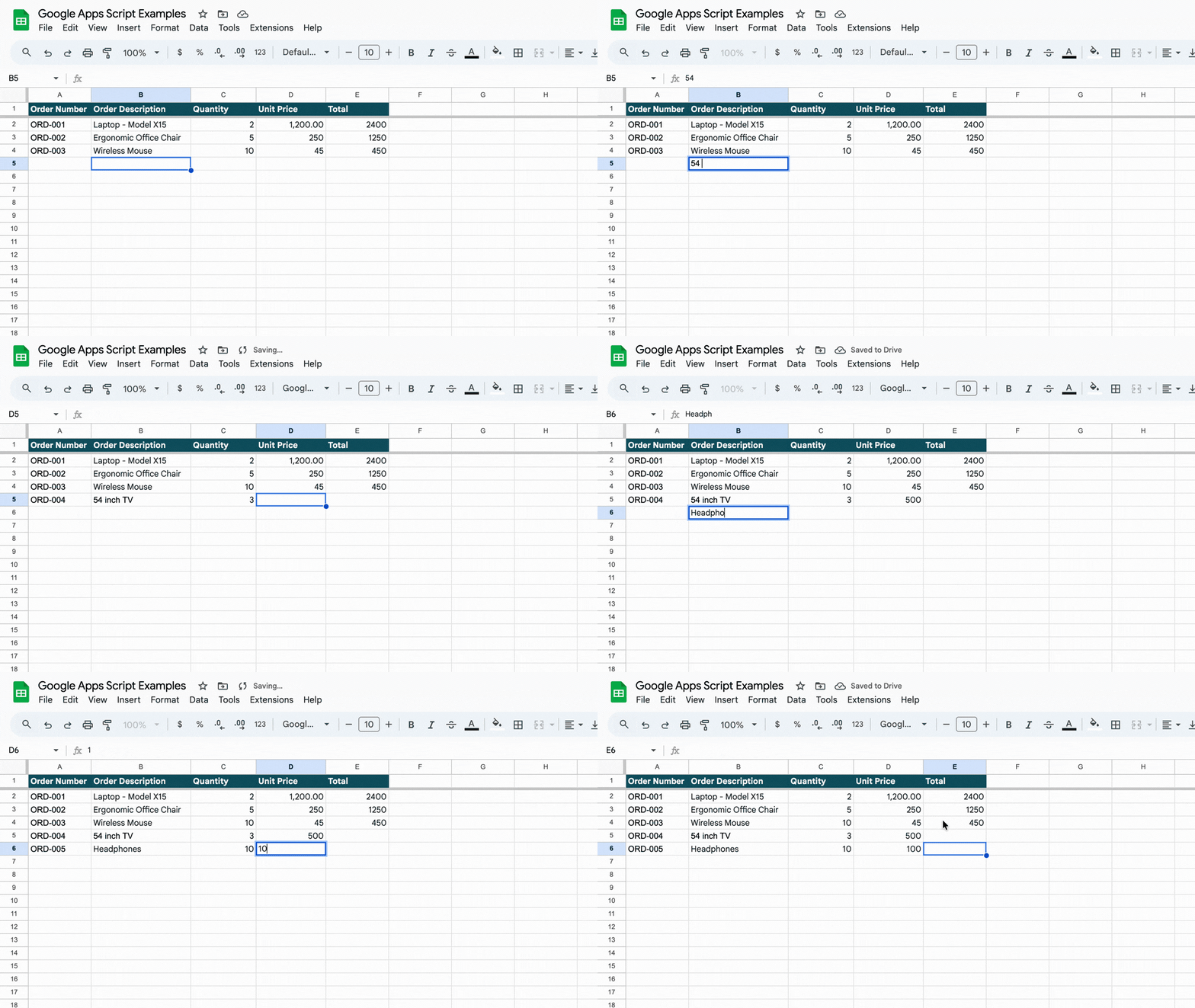
Automatically assign unique IDs to new rows as they're added. This is essential for data entry forms in Google Sheets where you need to track records with consistent identifiers.
Apps Script Code
function onEdit(e) {
  const sheet = e.source.getActiveSheet();
  const range = e.range;

  // Only run on the Orders sheet/tab
  if (sheet.getName() !== 'Orders') return;

  const row = range.getRow();
  const col = range.getColumn();

  // Skip header row
  if (row === 1) return;

  // Check if column A (ID column) is empty and column B has data
  const idCell = sheet.getRange(row, 1);
  const dataCell = sheet.getRange(row, 2);

  if (idCell.getValue() === '' && dataCell.getValue() !== '') {
    // Generate ID: ORD-001, ORD-002, etc.
    const lastRow = sheet.getLastRow();
    let maxId = 0;

    // Find the highest existing ID
    const ids = sheet.getRange(2, 1, lastRow - 1, 1).getValues();
    ids.forEach(id => {
      if (id[0] && id[0].toString().startsWith('ORD-')) {
        const num = parseInt(id[0].replace('ORD-', ''));
        if (num > maxId) maxId = num;
      }
    });

    const newId = 'ORD-' + String(maxId + 1).padStart(3, '0');
    idCell.setValue(newId);
  }
}
Customize the prefix (ORD-, INV-, TASK-) and padding based on your needs. The script scans existing IDs to ensure uniqueness even if rows are deleted.
How to Use It
- Sheet Name:
Ensure you have a sheet in your spreadsheet named exactlyOrders. The script will ignore any other sheets. - Column Setup:
Column A: This is for the ID (e.g., ORD-001). Leave this blank for a new entry.
Column B: This is your Data column. - The Trigger:
Type something into Column B (starting from row 2 onwards). The script will automatically generate the ID in Column A. - The Result:
As soon as you finish typing and move out of the cell in Column B, the script detects that Column A is empty and automatically generates the next sequential ID (like ORD-004) in Column A.
Level: Advanced6. Build an Approval Workflow Inside a Sheet
What It Does
Create a complete approval system where users submit requests, rows get locked from editing, and status moves through Draft → Submitted → Approved/Rejected. Approved rows become read-only. This is ideal for expense approvals, purchase requests, or content review workflows.
Step 1: Set Up Columns and Create Menu
First, set up your spreadsheet with the required columns. The approval workflow needs specific columns to track status, dates, and users.
Column Setup Instructions
In row 1 (header row), create these columns:- Column A: Description (Can be anything you want)
- Column B: Amount (Can be anything you want)
- Column C: Category (Can be anything you want)
- Column D: Notes (Can be anything you want)
- Column E: Status
- Column F: Submitted Date
- Column G: Submitter
- Column H: Decision Date
- Column I: Approver
Use Our Template
We've created a ready-to-use template with all columns set up and the script pre-configured. Open our approval workflow template to get started quickly.
Add the Custom Menu Script
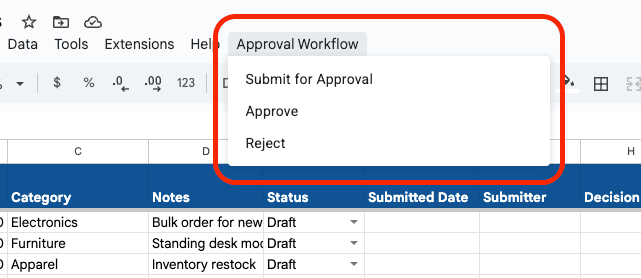
The custom menu appears automatically when you open the sheet. This function runs every time the spreadsheet opens and creates a menu with three options: Submit for Approval, Approve, and Reject.
// This function runs automatically when the spreadsheet opens
// It creates a custom menu in the menu bar
function onOpen() {
  const ui = SpreadsheetApp.getUi();

  // CREATE MENU AND ADD ITEMS
  ui.createMenu('Approval Workflow')
    .addItem('Submit for Approval', 'submitForApproval')
    .addItem('Approve', 'approveRow')
    .addItem('Reject', 'rejectRow')
    .addToUi();
}
Copy this code into your Apps Script editor. After saving, reload your spreadsheet. You'll see a new "Approval Workflow" menu in the menu bar.
Step 2: Submit for Approval
When a user fills in a row with request details (columns A-D), they can submit it for approval. The script locks the row, updates the status, and sends a notification email.
What It Does
When a user fills in a row with request details (columns A-D), they can submit it for approval. The script locks the row, updates the status, and sends a notification email.
Submit for Approval Script
// Function called when user selects "Submit for Approval" from menu
function submitForApproval() {
  // Get the active spreadsheet and row
  const sheet = SpreadsheetApp.getActiveSpreadsheet().getActiveSheet();
  const row = sheet.getActiveRange().getRow();

  // VALIDATION: Check if user clicked on header row (row 1)
  if (row === 1) {
    SpreadsheetApp.getUi().alert('Select a data row, not the header.');
    return; // Stop execution
  }

  const statusCell = sheet.getRange(row, 5);
  const currentStatus = statusCell.getValue();

  // VALIDATION: Check if row is already submitted, approved, or rejected
  if (currentStatus !== '' && currentStatus !== 'Draft') {
    SpreadsheetApp.getUi().alert('This row has already been submitted.');
    return;
  }

  // UPDATE STATUS, DATE, AND SUBMITTER
  statusCell.setValue('Submitted');
  sheet.getRange(row, 6).setValue(new Date());
  sheet.getRange(row, 7).setValue(Session.getActiveUser().getEmail());

  // PROTECT ROW FROM EDITING
  const protection = sheet.getRange(row, 1, 1, 4).protect();
  protection.setDescription('Submitted row ' + row);
  protection.setWarningOnly(true);

  // SEND NOTIFICATION EMAIL TO APPROVER
  // IMPORTANT: Replace 'approver@company.com' with your approver's email
  GmailApp.sendEmail(
    'approver@company.com',
    'New Expense Approval Request',
    'A new expense request needs your approval. Row: ' + row
  );

  // Show success message to user
  SpreadsheetApp.getUi().alert('Submitted for approval!');
}
Important Note
Replace 'approver@company.com' with the actual email address of your approver. You can also make this dynamic by reading it from a cell. See the Making Values Dynamic section for details.
Step 3: Review a Request (Approve or Reject)
When an approver reviews a submitted request, they can approve it from the menu. This makes the entire row read-only and records who approved it and when.
What It Does
When an approver reviews a submitted request, they can approve it from the menu. This makes the entire row read-only and records who approved it and when.
Approve and Reject functions
function approveRow() {
  const sheet = SpreadsheetApp.getActiveSpreadsheet().getActiveSheet();
  const row = sheet.getActiveRange().getRow();
  const statusCell = sheet.getRange(row, 5);

  // Only submitted rows can be approved
  if (statusCell.getValue() !== 'Submitted') {
    SpreadsheetApp.getUi().alert('Only submitted rows can be approved.');
    return;
  }

  // Update status, date, and approver info
  statusCell.setValue('Approved');
  sheet.getRange(row, 8).setValue(new Date()); // Decision Date
  sheet.getRange(row, 9).setValue(Session.getActiveUser().getEmail()); // Approver

  // Protect entire row and remove all editors except current user
  const protection = sheet.getRange(row, 1, 1, 9).protect();
  protection.setDescription('Approved row ' + row);
  protection.addEditor(Session.getEffectiveUser());
  protection.removeEditors(protection.getEditors());
  if (protection.canDomainEdit()) {
    protection.setDomainEdit(false);
  }
}

function rejectRow() {
  const sheet = SpreadsheetApp.getActiveSpreadsheet().getActiveSheet();
  const row = sheet.getActiveRange().getRow();
  const statusCell = sheet.getRange(row, 5);

  // Only submitted rows can be rejected
  if (statusCell.getValue() !== 'Submitted') {
    SpreadsheetApp.getUi().alert('Only submitted rows can be rejected.');
    return;
  }

  // Update status, date, and approver info
  statusCell.setValue('Rejected');
  sheet.getRange(row, 8).setValue(new Date()); // Decision Date
  sheet.getRange(row, 9).setValue(Session.getActiveUser().getEmail()); // Approver

  // Remove protection so submitter can edit and resubmit
  const protections = sheet.getProtections(SpreadsheetApp.ProtectionType.RANGE);
  protections.forEach(p => {
    if (p.getDescription() === 'Submitted row ' + row) {
      p.remove();
    }
  });
}
Complete Code
Copy all four functions (onOpen, submitForApproval, approveRow, and rejectRow) into your Apps Script editor. The menu will appear automatically when you reload the spreadsheet.
Making Values Dynamic: Pulling Data from Cells
The examples above use hardcoded values to keep them simple. In real workflows, you'll want to pull data from your spreadsheet cells instead. This makes your scripts reusable and lets you change values without editing code.
Reading Values from Cells
Use getRange() and getValue() to read data from specific cells:
function sendEmailFromSheet() {
  const sheet = SpreadsheetApp.getActiveSpreadsheet().getActiveSheet();

  // Read values from cells
  const recipient = sheet.getRange('B2').getValue(); // Email in cell B2
  const subject = sheet.getRange('B3').getValue();  // Subject in cell B3
  const body = sheet.getRange('B4').getValue();     // Body in cell B4

  GmailApp.sendEmail(recipient, subject, body);
}
Reading Multiple Rows of Data
When you need to process multiple rows, use getValues() to read an entire range at once:
function sendBulkEmails() {
  const sheet = SpreadsheetApp.getActiveSpreadsheet().getActiveSheet();

  // Get all data starting from row 2 (skip header)
  const data = sheet.getRange('A2:C10').getValues();

  // Loop through each row
  data.forEach(row => {
    const recipient = row[0];  // Column A
    const subject = row[1];    // Column B
    const body = row[2];       // Column C

    if (recipient && subject && body) {
      GmailApp.sendEmail(recipient, subject, body);
    }
  });
}
Using the Active Row or Selected Cell
For scripts triggered by user actions, get the currently selected cell or row:
function createEventFromActiveRow() {
  const sheet = SpreadsheetApp.getActiveSpreadsheet().getActiveSheet();
  const activeRow = sheet.getActiveRange().getRow();

  // Read data from the active row
  const title = sheet.getRange(activeRow, 1).getValue();      // Column A
  const startDate = sheet.getRange(activeRow, 2).getValue();  // Column B
  const endDate = sheet.getRange(activeRow, 3).getValue();    // Column C
  const attendees = sheet.getRange(activeRow, 4).getValue(); // Column D

  const calendar = CalendarApp.getDefaultCalendar();
  calendar.createEvent(title, new Date(startDate), new Date(endDate), {
    guests: attendees
  });
}
Dynamic Values in Event Handlers
The onEdit trigger provides an event object with information about what was edited:
function onEdit(e) {
  const sheet = e.source.getActiveSheet();
  const row = e.range.getRow();
  const col = e.range.getColumn();

  // Read values from the edited row
  const name = sheet.getRange(row, 1).getValue();
  const email = sheet.getRange(row, 2).getValue();
  const amount = sheet.getRange(row, 3).getValue();

  // Only process if column D (approval status) was edited
  if (col === 4 && sheet.getRange(row, 4).getValue() === 'Approved') {
    // Send notification email using values from the row
    GmailApp.sendEmail(
      email,
      'Your request has been approved',
      'Hi ' + name + ',\n\nYour request for $' + amount + ' has been approved.'
    );
  }
}
By pulling values from cells, your scripts become flexible and reusable. Users can update data in the spreadsheet without touching code, making your automation accessible to non-technical team members.
Next Steps
You now have 6 practical scripts to automate your Google Workspace workflows. Start with the beginner examples to understand the basics, then move to intermediate and advanced scripts as you get comfortable.
These scripts are building blocks. Combine them to create powerful Google Sheets automations tailored to your specific needs. For example, use the approval workflow with email notifications, or combine API fetching with document generation to create automated reports.