How to Create an Automated Data Entry Form in Google Sheets

An automated data entry form in Google Sheets saves time and reduces errors. You can build one using Google Forms for quick setups or create a custom form inside your spreadsheet with Apps Script for full control. This guide covers both methods with step-by-step instructions. By the end, you will have a working employee onboarding form that automatically logs entries to a separate sheet.
Quick SetupMethod 1: Google Forms
Google Forms is the fastest way to collect data into Google Sheets. It requires no coding and automatically syncs responses to your spreadsheet. This works well for surveys, feedback forms, and simple data collection.
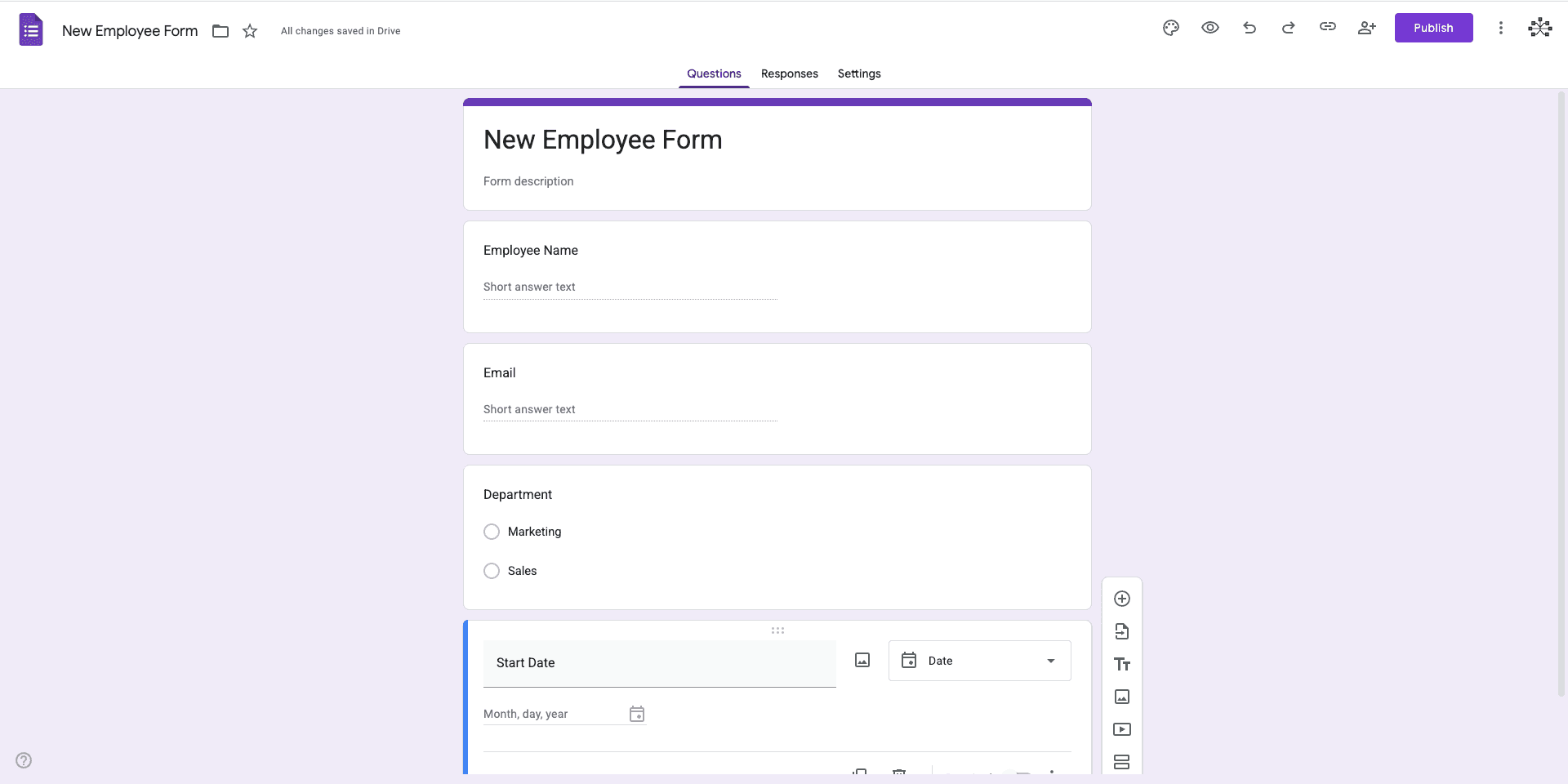
How to Set Up Google Forms
- Open Google Sheets and go to Tools → Create a new form
- Add your questions using the form editor. Google Forms supports short answer, multiple choice, dropdown, checkboxes, and more.
- Click the Responses tab, then the green Sheets icon to link responses to your spreadsheet
- Share the form link with users. Responses appear automatically in your sheet.
According to Google's documentation, form responses sync instantly to your connected spreadsheet. Each submission creates a new row with a timestamp.
Custom Form in Google SheetsMethod 2: Custom Form with Apps Script
For forms that live inside your spreadsheet, you can create a custom data entry interface using cells, data validation, and Apps Script. This Google Sheets automation method gives you complete control over the design and lets users enter data without leaving the sheet.
We will build an employee onboarding form as an example. The form collects name, email, department, and start date. When submitted, the data moves to a separate sheet and the form clears for the next entry.
Use our template
We have created a working spreadsheet for you to explore. Open our template to see the form and script in action.
Step 1: Create the Form Layout
Start by designing your form in a dedicated sheet. Use one column for labels and another for input fields.
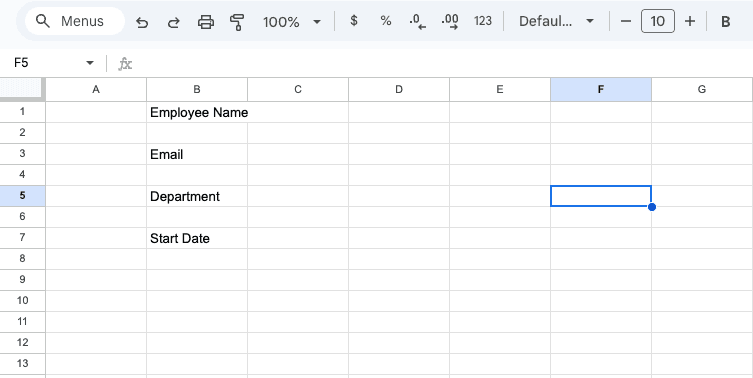
- Create a new Google Sheet or open an existing one
- Rename the first sheet to Form
- In column C, add your field labels: Employee Name, Email, Department, Start Date
- Leave a blank row between the labels for better readability
- Leave column D empty for user input
- Create a second sheet named Entries where submissions will be stored
- In the Entries sheet, add headers in row 1: Employee Name, Email, Department, Start Date, Submitted At
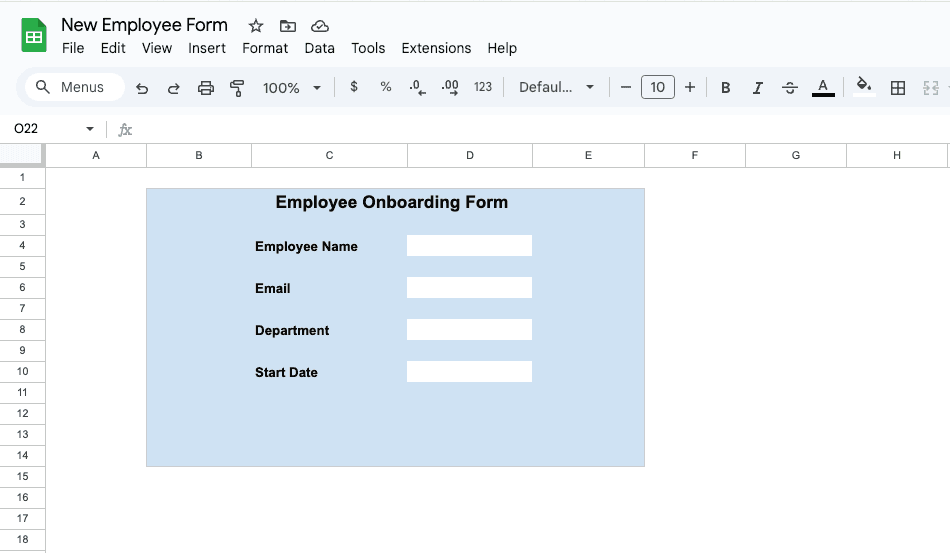
Format the form sheet to make it user-friendly. Merge cells for a title, adjust column widths, and add background colors to distinguish labels from input areas.
Step 2: Style the Form
Make your form look professional with a few formatting changes. A well-styled form improves user experience and makes data entry feel more polished.
Remove Grid Lines
Grid lines can make a form look cluttered. To remove them:
- Select the entire form area (or the whole sheet)
- Go to View → Show → Gridlines
- Uncheck Gridlines to hide them
Adjust Column Widths
Proper column widths make your form easier to read and use:
- Hover over the border between column headers (A and B)
- Double-click to auto-fit, or drag to set a custom width
Merge Cells for Title
Add a professional header to your form:
- Select cells C2 and D2 (or a wider range for a centered title)
- Click Format → Merge cells → Merge horizontally
- Type your form title, such as "Employee Onboarding Form"
- Format the title with a larger font size and bold styling
Add Background Colors
Use colors to distinguish different sections of your form:
- Select form area
- Click the fill color icon in the toolbar
- Choose a light color (like light blue or gray)
- Select the input cells and use a white or light yellow background
- Optionally, make labels bold and add a border to the form area
Additional Styling Tips
- Center align labels: Right-align or center-align text in the label column for a cleaner look
- Add spacing: Leave blank rows between sections if your form has multiple parts
- Use consistent fonts: Stick to one or two font families throughout the form
These styling changes make your form look more professional and easier to use. The visual hierarchy helps users understand where to enter information.
Use our template
We have created a working spreadsheet for you to explore. Open our template to see the form and script in action.
Step 3: Add Data Validation
Data validation prevents incorrect entries and makes the form easier to use. Google Sheets offers built-in validation rules you can apply without code.
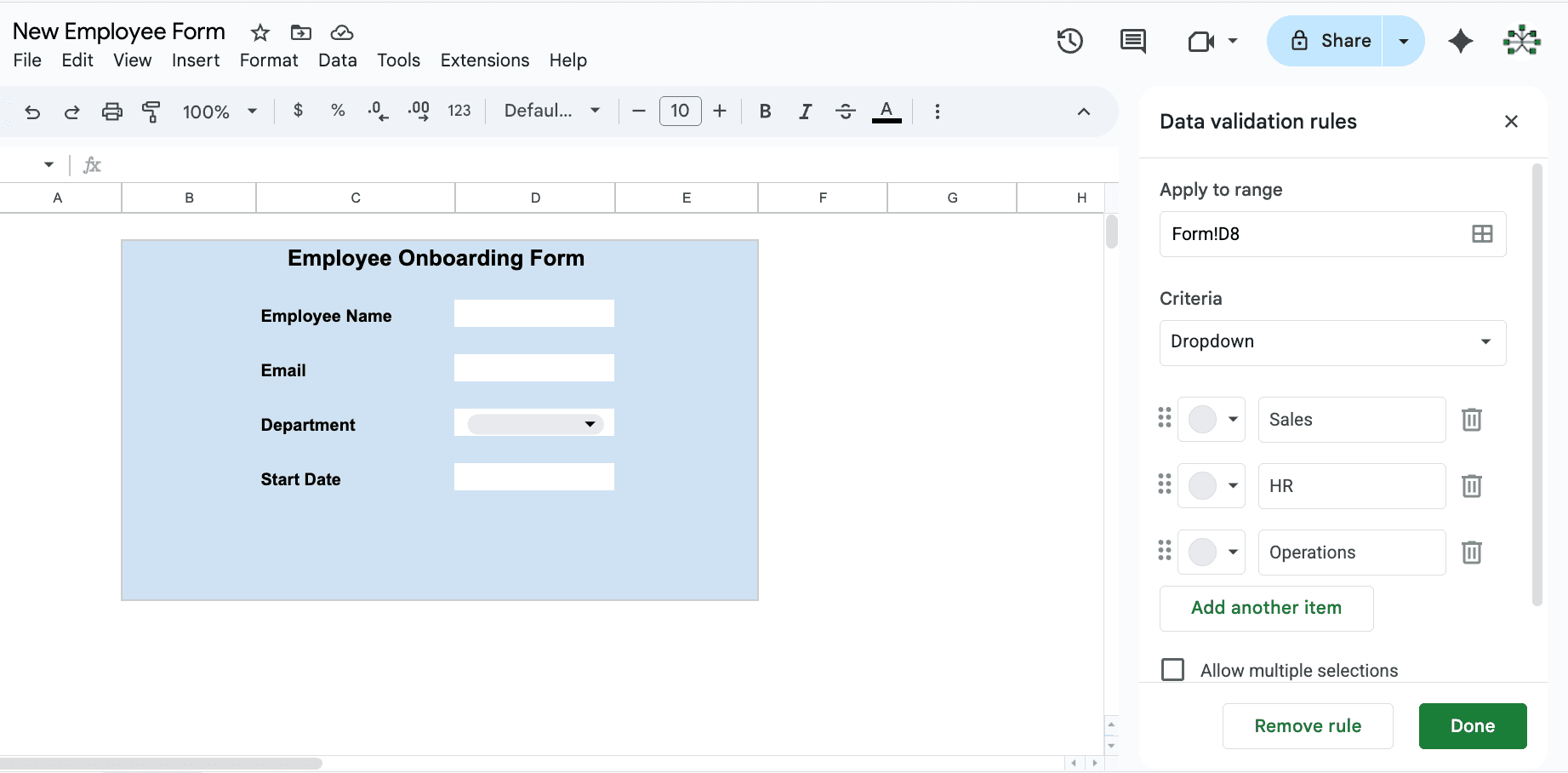
Adding a Dropdown for Department
- Select the cell next to "Department"
- Go to Data → Data validation
- Under Criteria, select Dropdown
- Enter your options: Engineering, Marketing, Sales, HR, Finance
- Check "Show dropdown list in cell" and click Done
Adding Date Validation
- Select the cell next to "Start Date"
- Go to Data → Data validation
- Under Criteria, select Is valid date
- Click Done
You can also add email validation using "Text contains" with the @ symbol, though Apps Script can handle more robust email checks.
Step 4: Add the Submit Button
Google Sheets lets you insert drawings that act as buttons. We will create a Submit button and link it to our Apps Script function.
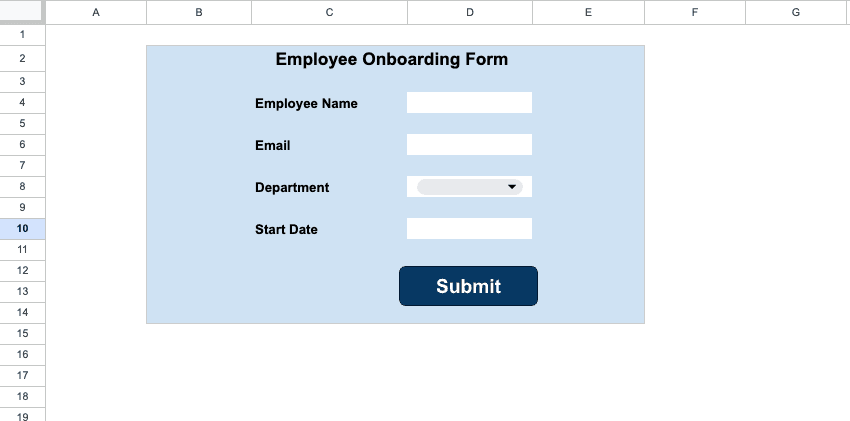
- Go to Insert → Drawing
- In the drawing editor, click the shape icon and select a rounded rectangle
- Draw the shape and add text: "Submit"
- Customize colors and font as needed, then click Save and Close
- Position the button below your form fields
After adding the Apps Script in the next step, you will assign the function to this button.
Step 5: Write the Apps Script
Apps Script handles the form submission logic. When triggered, it reads values from the form, adds them to the Entries sheet, and clears the form for the next submission. Learn more about Apps Script in the official Google documentation.
Opening the Script Editor
- Go to Extensions → Apps Script
- Delete any default code in the editor
- Paste the following code:
function submitForm() {
  const ss = SpreadsheetApp.getActiveSpreadsheet();
  const formSheet = ss.getSheetByName('Form');
  const entriesSheet = ss.getSheetByName('Entries');

  // Get form values (adjust cell references to match your layout)
  const employeeName = formSheet.getRange('D4').getValue();
  const email = formSheet.getRange('D6').getValue();
  const department = formSheet.getRange('D8').getValue();
  const startDate = formSheet.getRange('D10').getValue();

  // Validate required fields
  if (!employeeName || !email || !department || !startDate) {
    SpreadsheetApp.getUi().alert('Please fill in all fields.');
    return;
  }

  // Add timestamp
  const timestamp = new Date();

  // Append to Entries sheet
  entriesSheet.appendRow([
    employeeName,
    email,
    department,
    startDate,
    timestamp
  ]);

  // Clear form fields
  formSheet.getRange('D4:D10').clearContent();

  // Confirmation message
  SpreadsheetApp.getUi().alert('Entry submitted successfully!');
}- Click Save and name your project
- Return to your spreadsheet
Important Note
Adjust the cell references in the script (D4, D6, D8, D10) to match your actual form layout. If your input cells are in different positions, update the getRange calls accordingly.
Make sure to adjust the sheet names in the script (formSheet, entriesSheet) to match your actual form layout. If your form is in a different sheet, update the getSheetByName calls accordingly.
Assigning the Script to the Button
- Click on your Submit button drawing
- Click the three dots menu in the top right corner of the drawing
- Select Assign script
- Enter
submitFormand click OK
The first time you click Submit, Google will ask for authorization. Review the permissions and click Allow.
Use our template
We have created a working spreadsheet for you to explore. Open our template to see the form and script in action.
Which Method Should You Choose?
Both methods have their place depending on your needs:
| Feature | Google Forms | Custom Apps Script |
|---|---|---|
| Setup time | 5 minutes | 30+ minutes |
| Coding required | No | Yes (JavaScript) |
| Customization | Limited | Full control |
| Location | Separate window | Inside spreadsheet |
| Best for | Surveys, external users | Internal workflows, power users |
Use Google Forms when you need a quick solution for external data collection. It handles validation, mobile responsiveness, and syncing automatically.
Use a custom Apps Script form when you want the form embedded in your spreadsheet, need custom business logic, or want complete control over the user experience.
For more advanced features like custom styling with HTML/CSS, multi-step forms, or complex validation rules, you can extend Apps Script using the HtmlService. This lets you build web app interfaces that interact with your spreadsheet data.
Next Steps
You now have two ways to create automated data entry forms in Google Sheets. Start with Google Forms for simple use cases, then graduate to Apps Script when you need more control.
Once you have your form running, consider automating email notifications from Google Sheets to alert stakeholders when new entries are submitted. You can also explore other ways to import data into Google Sheets from different sources.